User guide
Bus manager guide
Assign students to buses and follow the trips.
-
Sign in with phone and password
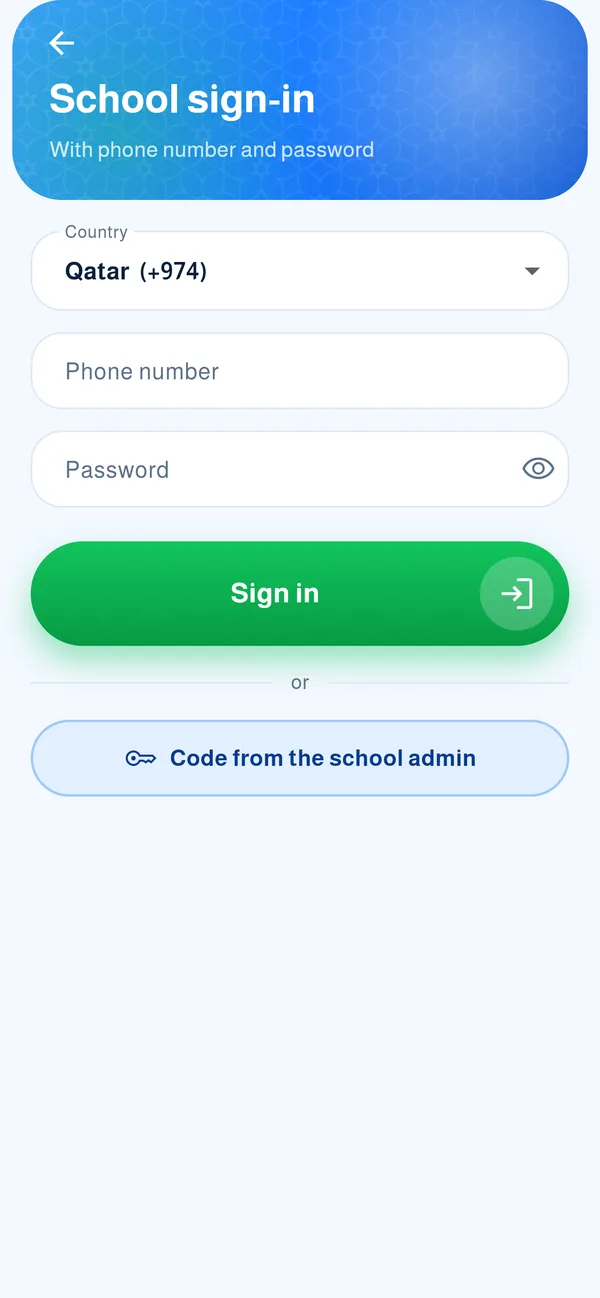
The school admin creates your account with a temporary password. Sign in from “School” with your phone number, and choose your own password the first time.
-
The buses screen
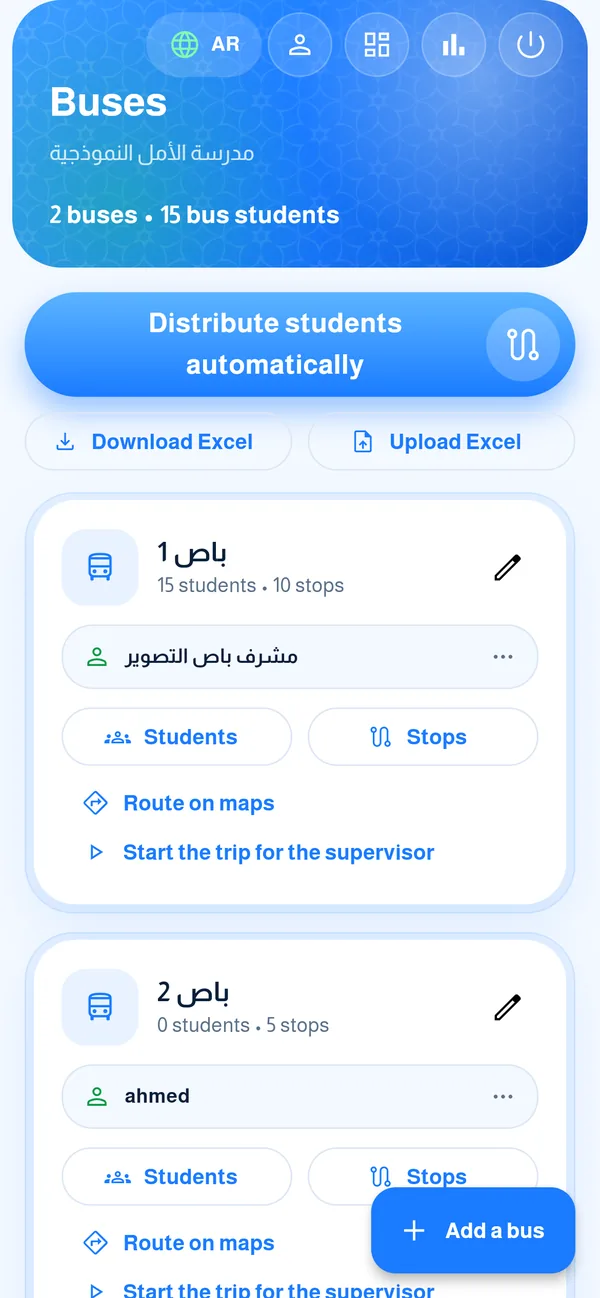
You see each bus with its supervisor, student count and stops. From here you add a bus, edit it, and start a trip for an absent supervisor.
-
Distribute students automatically
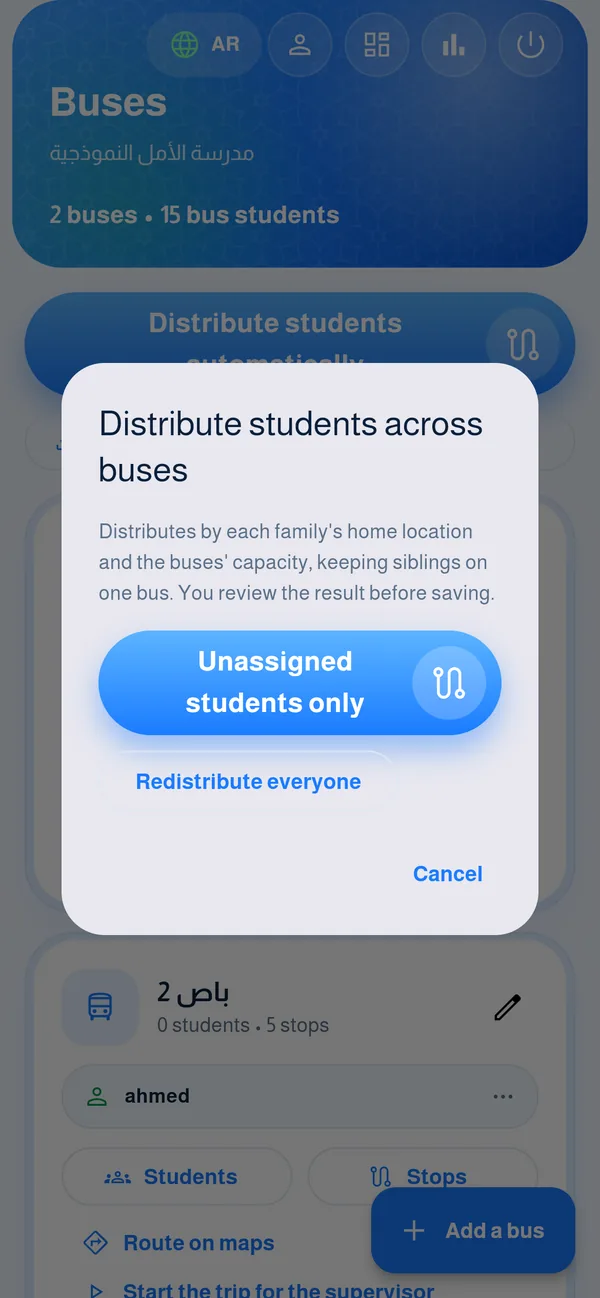
The app distributes students by each family’s home location and the buses’ capacity, keeping siblings together. You review the result before saving.
-
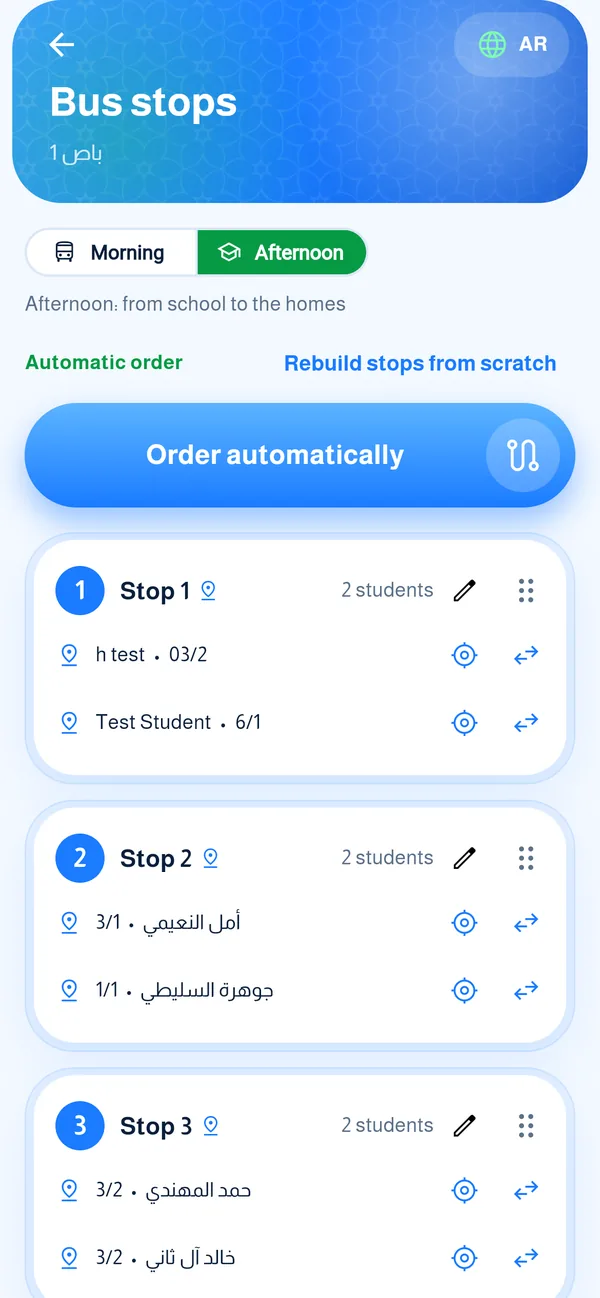
Stops and order
Each bus has stops built automatically from home locations. Rename a stop, move a student, or tap “Arrange now”.
-
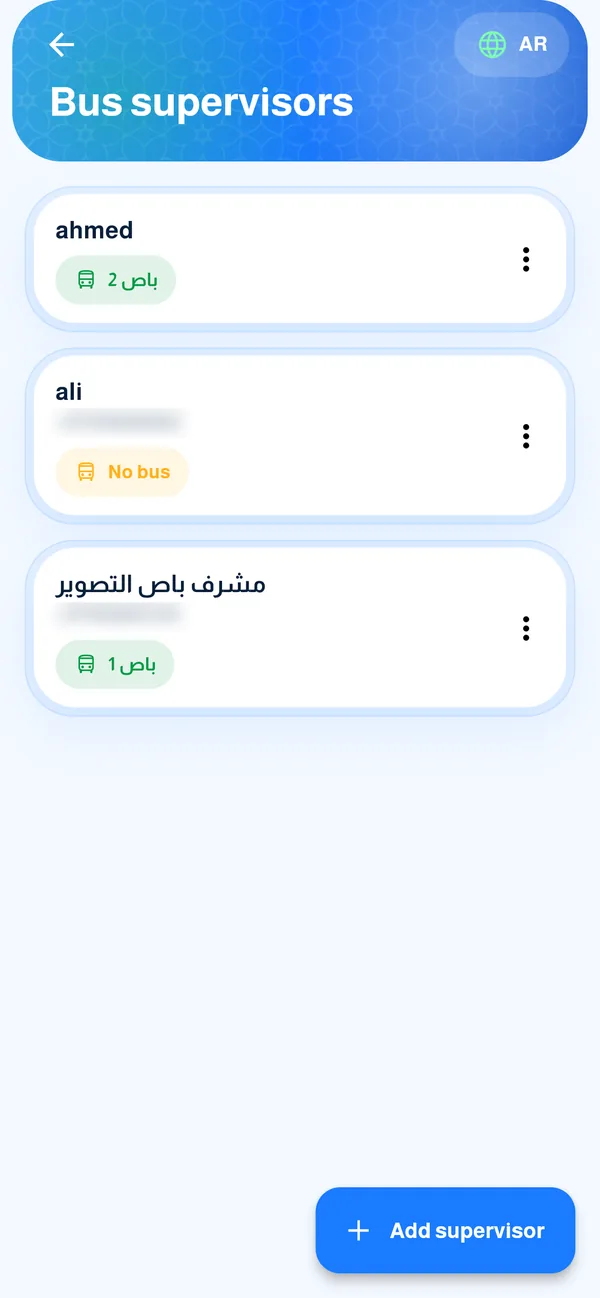
Bus supervisors
Add a supervisor with a code or QR, link them to a bus, and add their phone so parents can call. You can suspend or delete them.
-
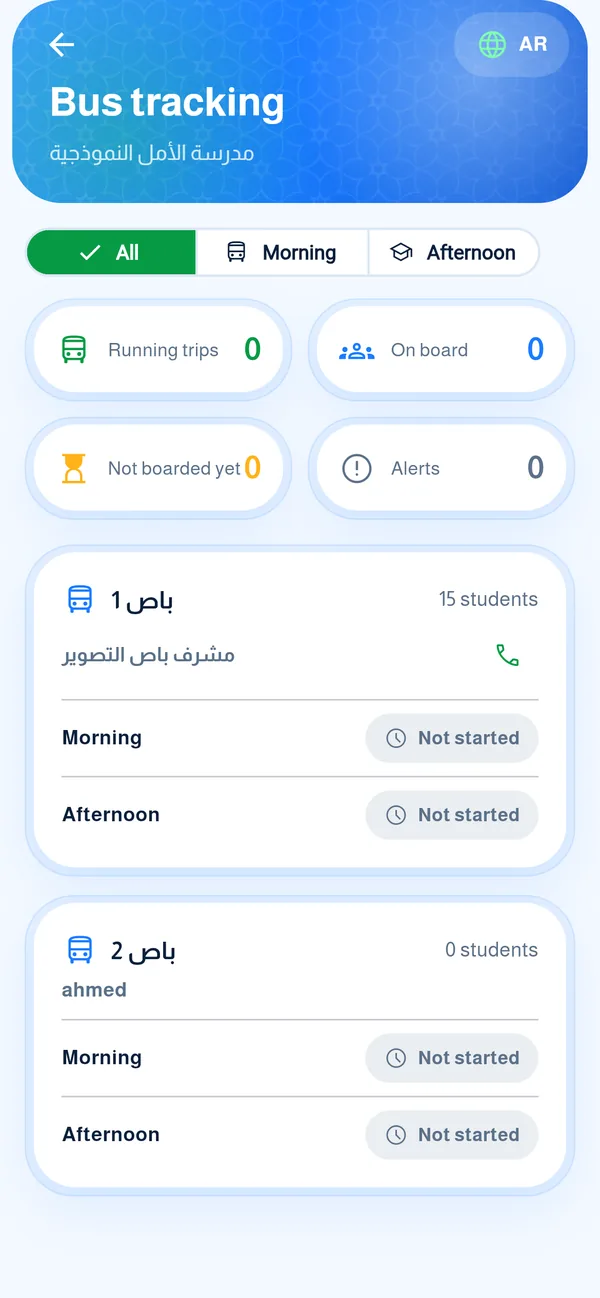
Bus tracking
For each bus you see the morning and return trip status. The app warns you if a trip stalls or students remain on a bus.
-
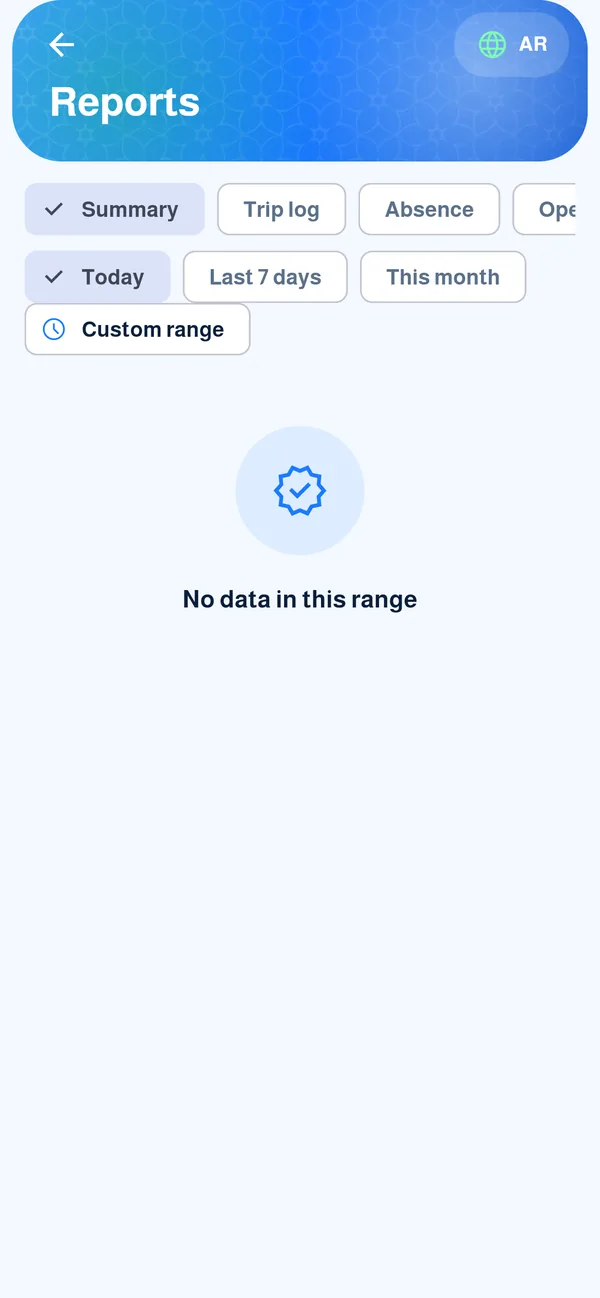
Reports
Summary, trip log, absences and data quality, for a day, a week or a month.
Common questions
A student has no stop?
It shows “No stop” when their family has no home location. The parent sets it in the app, or you set it: the supervisor with “I am at the student’s home” while standing there, the manager by pasting a maps link or coordinates on the stops page.
The bus supervisor is absent today?
The bus manager or the admin can start that bus’s trip for them, and the original supervisor can continue the same trip if they show up.
How do I distribute students across buses?
From the buses page choose automatic distribution: it uses home location and each bus’s capacity, siblings together. You review the result (count per bus) before saving. Capacity is a warning, not a block.
Can I assign students with an Excel file?
Yes, from the buses page: columns id, name, class and bus. Bus names must match existing buses, and an unknown bus name is rejected. You review a preview before saving.
I moved a student to another bus and now they have no stop?
Changing the bus clears the student’s stop. After distribution the app rebuilds the return stops and sends the affected supervisors a notice to review the list.
How do I delete a bus?
From “Edit bus” choose “Delete bus”. It cannot be deleted while a trip is running; its trip history is deleted with it and its students become “no bus”.
When does the app warn me a trip has stalled?
If about 15 minutes pass with no boarding mark, or students remain on the bus after the return trip, the bus manager gets an alert and it shows on the “Bus tracking” board.
How do I add a bus supervisor?
The school admin adds them from “Supervisors and organisers” with a code or QR, and the bus manager links them to a bus. You can add their number so parents can call them.
How does the bus manager sign in?
With phone and password: the school admin creates the account with a temporary password; they sign in from “School” and choose their own password the first time.