User guide
Display screen guide
Show who is being released now on the waiting-room TV.
-
On the TV
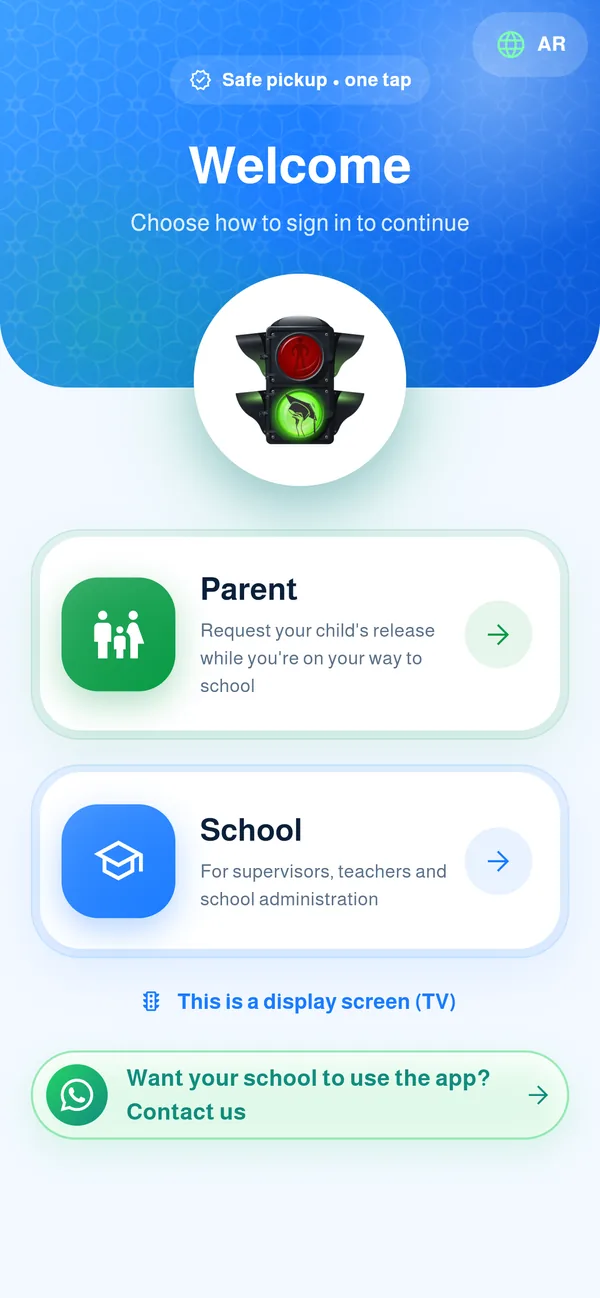
Install the app on the TV (Android TV), open it and choose “This is a display screen (TV)”. A 6-digit code appears.
-
Pair it from admin
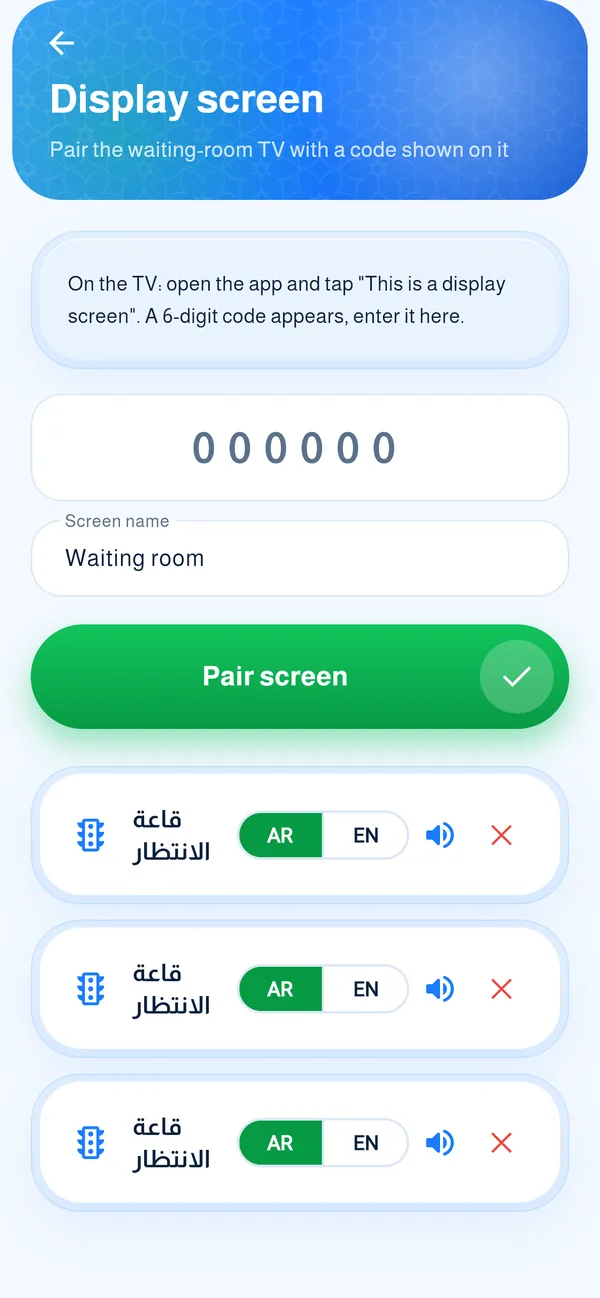
On your phone open “Display screen” in admin, enter the code, name the screen, then tap “Pair screen”.
-
What it shows
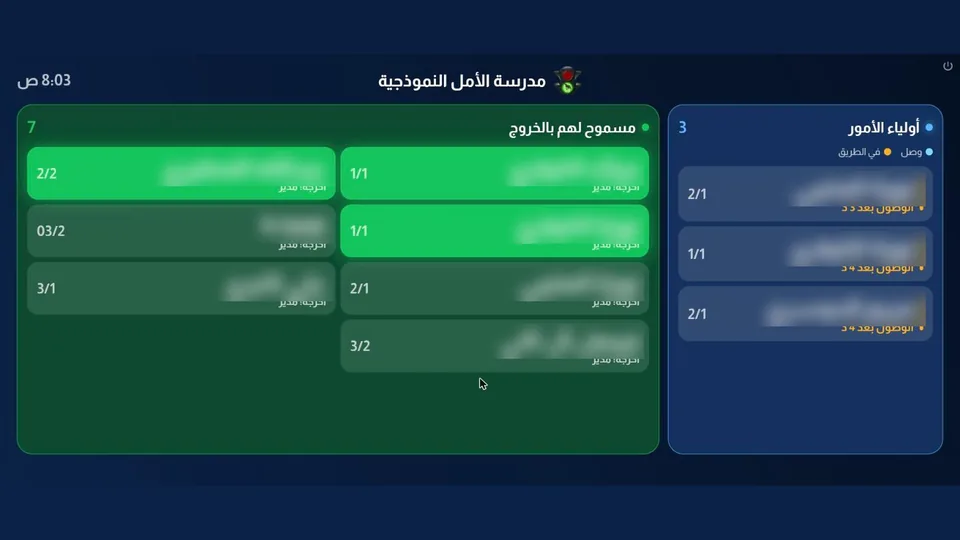
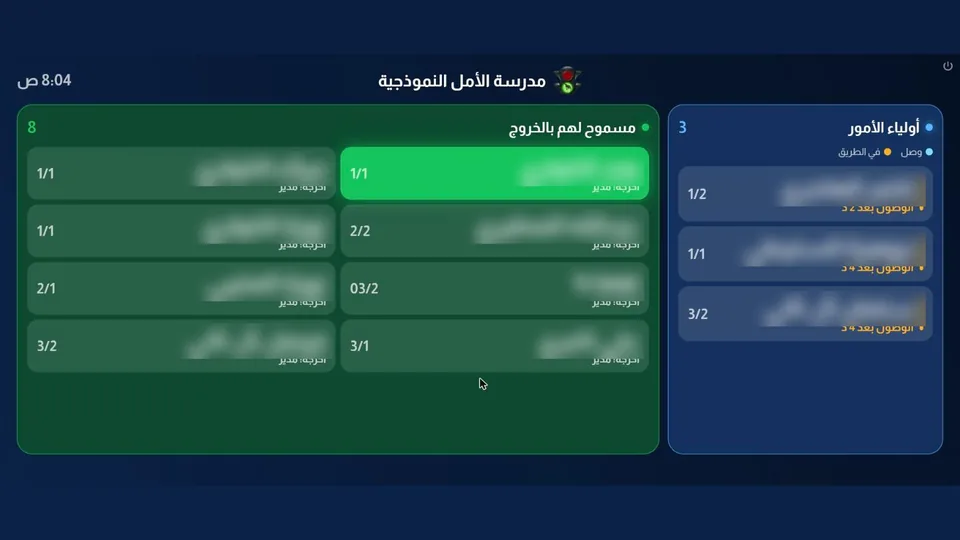
Two tables: “Parents waiting” with expected arrival, and “Cleared to leave”, newest first with the first name lit.
-
It updates by itself
Names appear the moment they are released and fade after a few minutes. A soft chime plays for each new name, and you can mute it or change the screen language from admin.
Common questions
Which devices work as a display screen?
An Android TV with the same app installed from the store, then choose “This is a display screen”.
The screen shows nothing?
Check the TV is paired from “Display screen” in admin and that it has internet.
What does the screen show?
Two tables: “Parents waiting” with expected arrival, and “Cleared to leave”, newest first with the first name lit. Names appear the moment they are released and fade after a few minutes.
Does it show student names to people in the hall?
It shows first names only, according to the school’s setting, for those waiting to leave.
How do I mute the sound or change the language?
In “Display screen” in admin: a sound switch for each screen and an AR/EN selector beside it for its language. The screen’s language is independent of your phone’s.
Can I pair more than one screen?
Yes, pair each TV with its own code from “Display screen” and name it. You can remove any screen there.