User guide
Supervisor guide
Release a student with one tap when the parent arrives.
-
Sign in with the school code
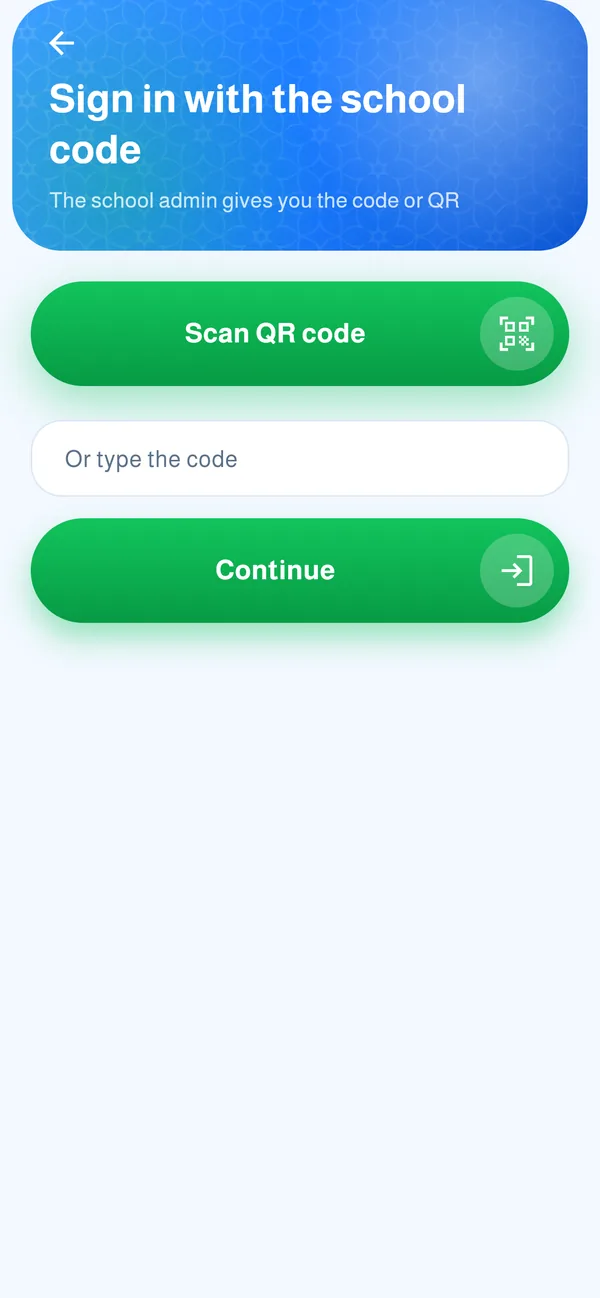
The school admin gives you an 8-character code or a QR. On the sign-in screen choose “Code from the school admin”, type it and tap “Continue”.
- 1Type the code here
- 2Then tap Continue
 12
-
Wait for the admin to confirm
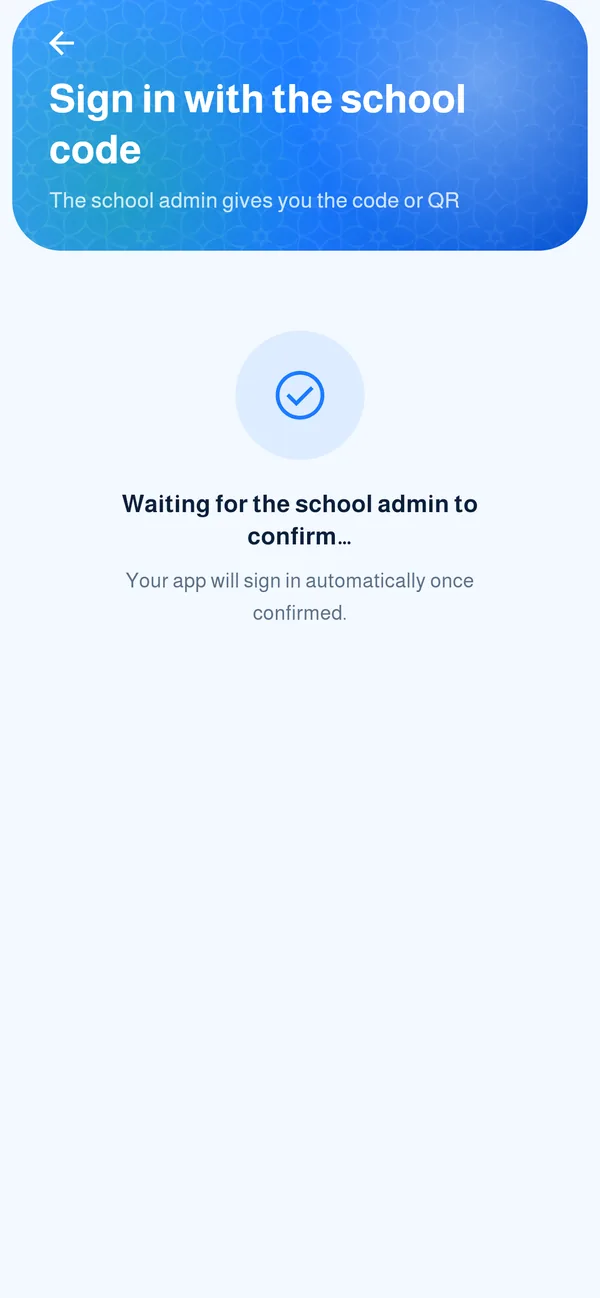
The admin confirms your name on their phone and your app signs in by itself. No password needed.
-
See who has arrived
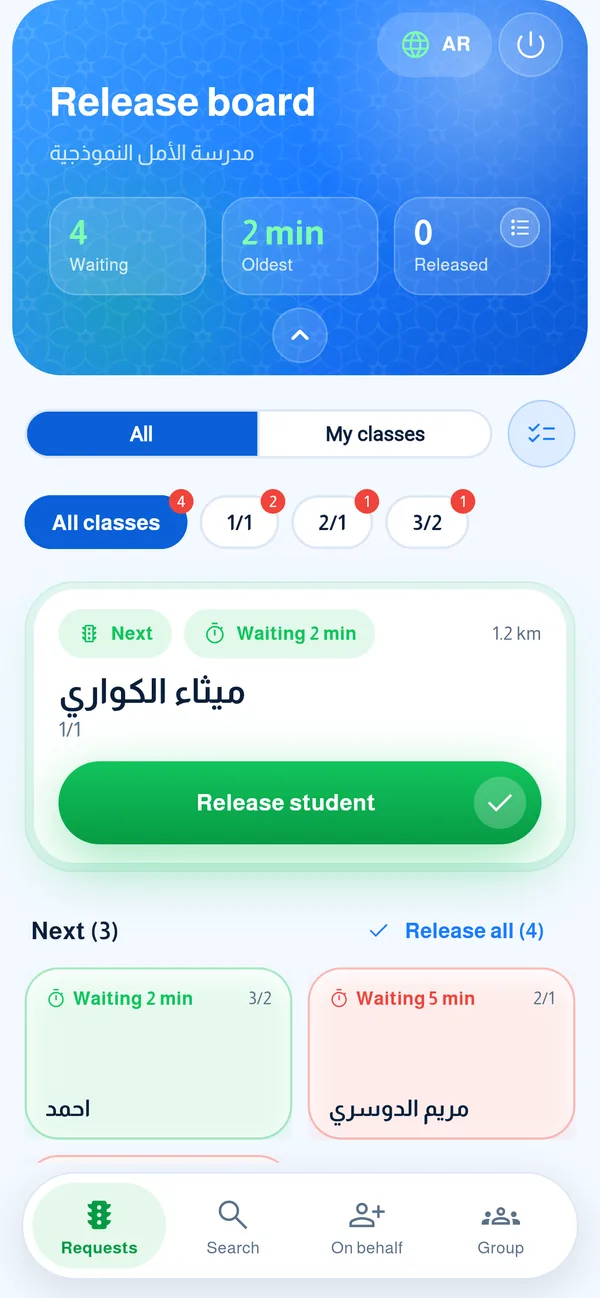
The “Next” student card comes first, then everyone else who has arrived, then those still on the way with their expected arrival time.
- 1Live numbers: waiting, oldest wait, released today
- 2The next student in line
- 3The release button
 123
-
Release the student
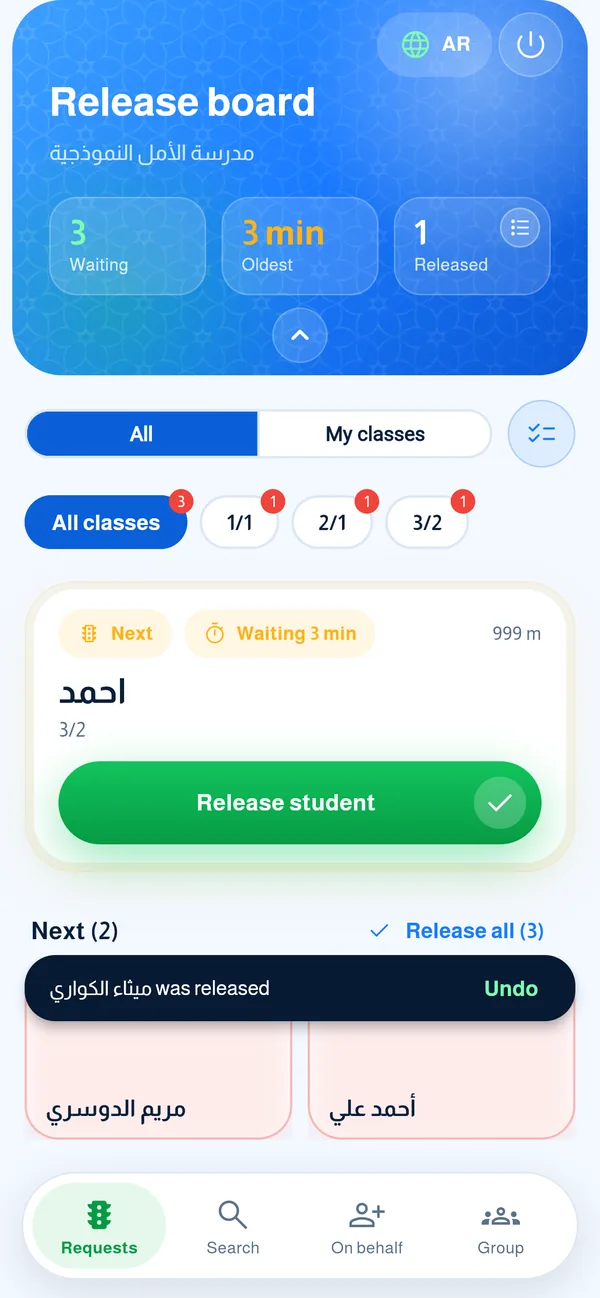
Tap “Release student” and the parent gets a notification at once. Made a mistake? Tap “Undo” within a few seconds.
- 1The undo bar
 1
-
Organise your work
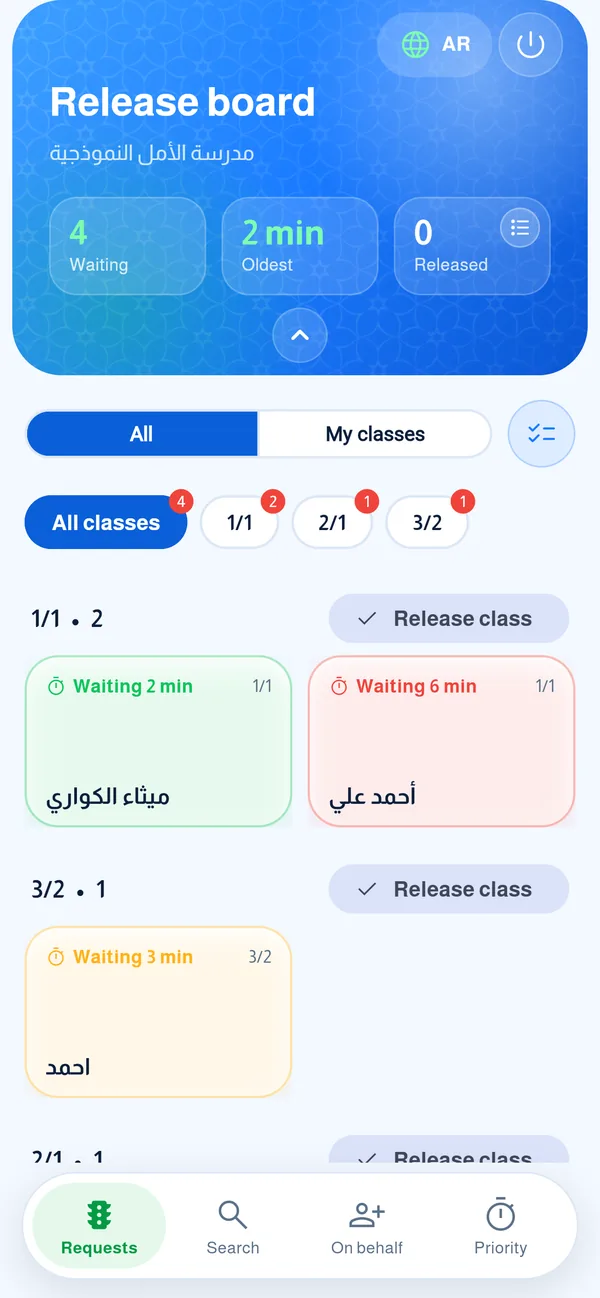
Fold the header for more room, choose “My classes” to see only your classes, or tap one class. “Group” shows students grouped by class so you can release them together.
-
Request on behalf of a parent
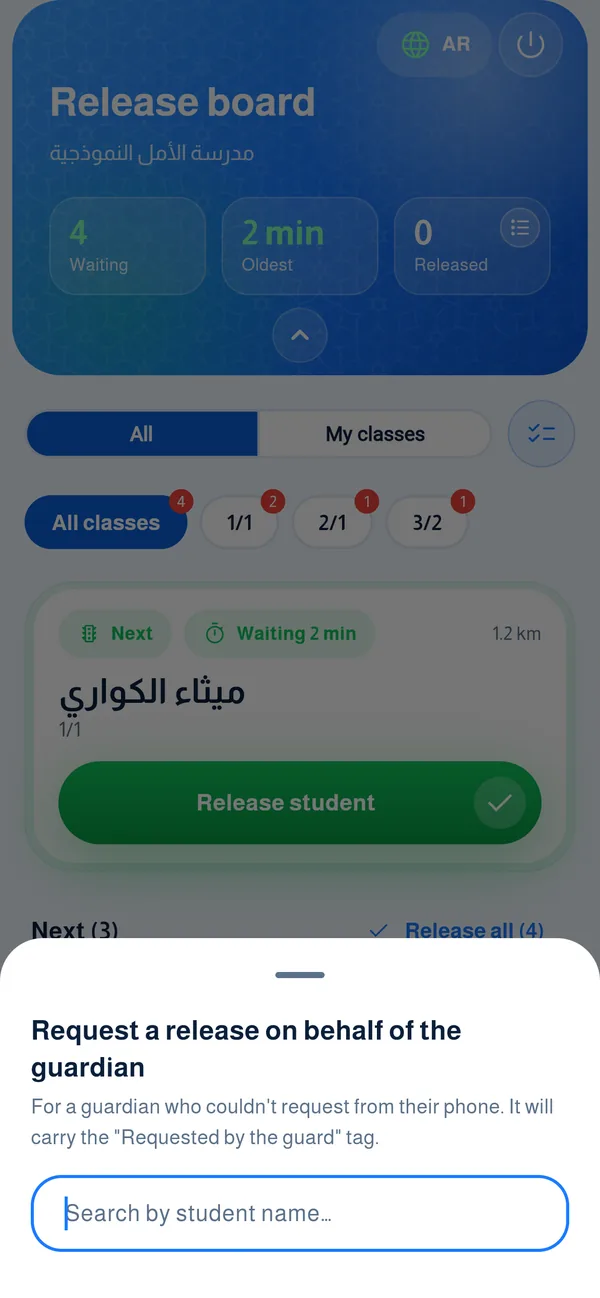
If a parent cannot request from their phone, choose “On behalf” and search for the student. The request shows a “Requested by the gate” tag.
Common questions
How do I sign in the first time?
The school admin gives you a code or QR. Choose “Code from the school admin”, type it, tap “Continue” and wait for the admin to confirm your name; your app then signs in by itself. No password needed.
Nobody shows in the list?
Check you are not on “My classes” with no classes selected, and that it is within release hours. Tap “All” to see everyone.
How is the queue ordered?
The “Next” card comes first, then those who have arrived, then those on the way by nearest arrival. Order follows expected arrival time, not the time of the request.
How do I release a student?
Tap “Release student” and the parent is notified right away. “Release all” covers the first card and those who arrived only, and tells you who is left.
I released a student by mistake?
Tap “Undo” in the bottom bar right away; it stays only a few seconds. After it disappears, contact the admin.
A parent cannot request from their phone?
Choose “On behalf” and search for the student. The request shows with a tag showing it was made on their behalf.
How do I approve an early exit?
Requests appear in the “Early exit approval” section. Read the reason, then approve or refuse; the parent is notified. When approved the student is released right away.
How do I see only my classes?
Tap the circle next to “All / My classes” to choose your classes; then “My classes” shows only them.
How do I use the app on another phone?
Ask the admin for “New device” from the supervisors list. They give you a new code that replaces the old device.
What does the name on a request mean (like “Father • Abu Ali”)?
It is the name of the guardian’s phone that sent the request, showing who is coming to pick up the student.