User guide
Gate guide
Confirm students are picked up at the gate.
-
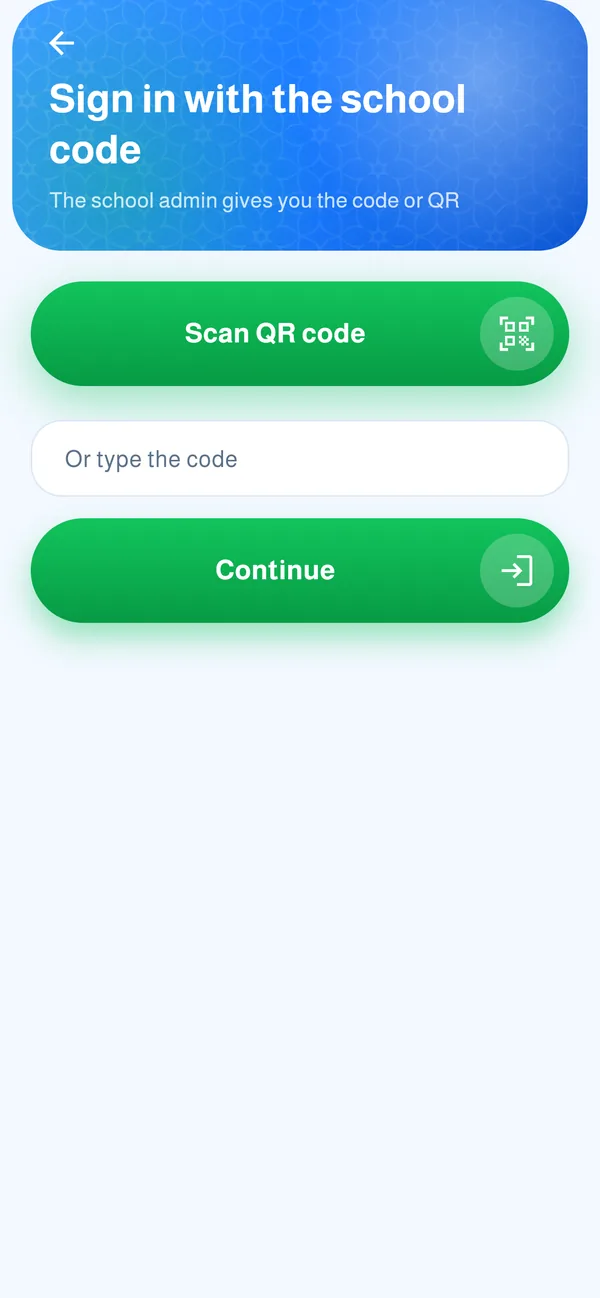
Sign in with the school code
The school admin gives you a code or QR. Choose “Code from the school admin”, type it, tap “Continue” and wait for the admin to confirm.
-
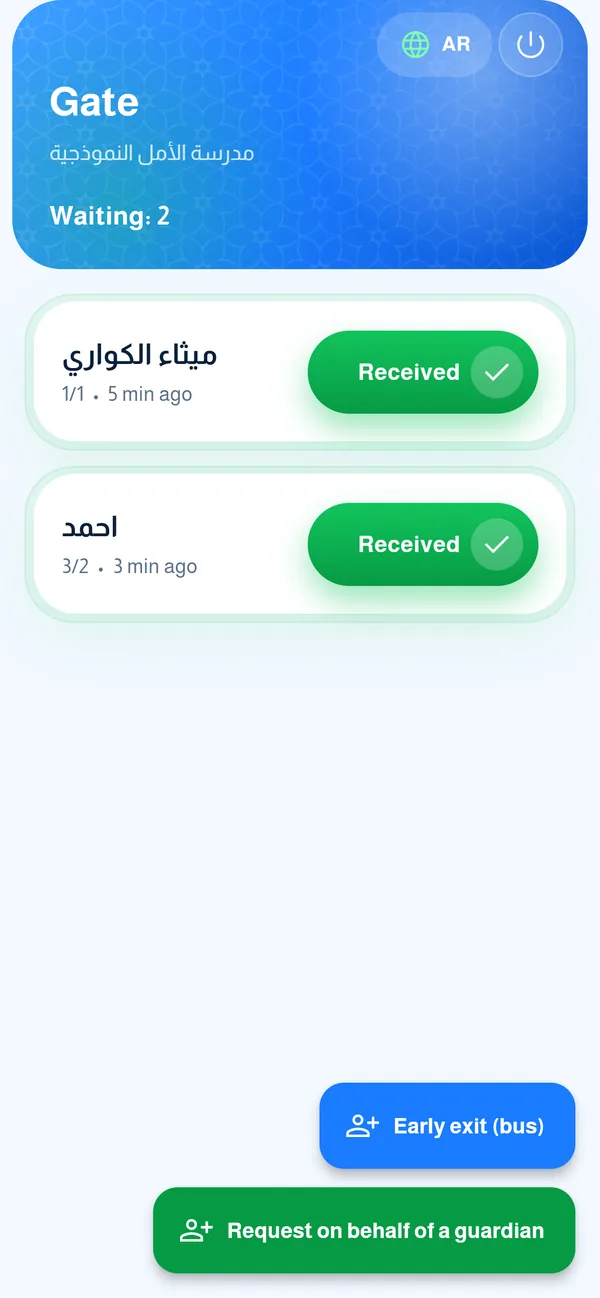
The gate screen
You see who has been released and is waiting for pickup, and how long ago. When the student gets into the car, tap “Received” and the parent gets a confirmation. This step shows if the admin enabled it.
- 1The Received button
 1
-
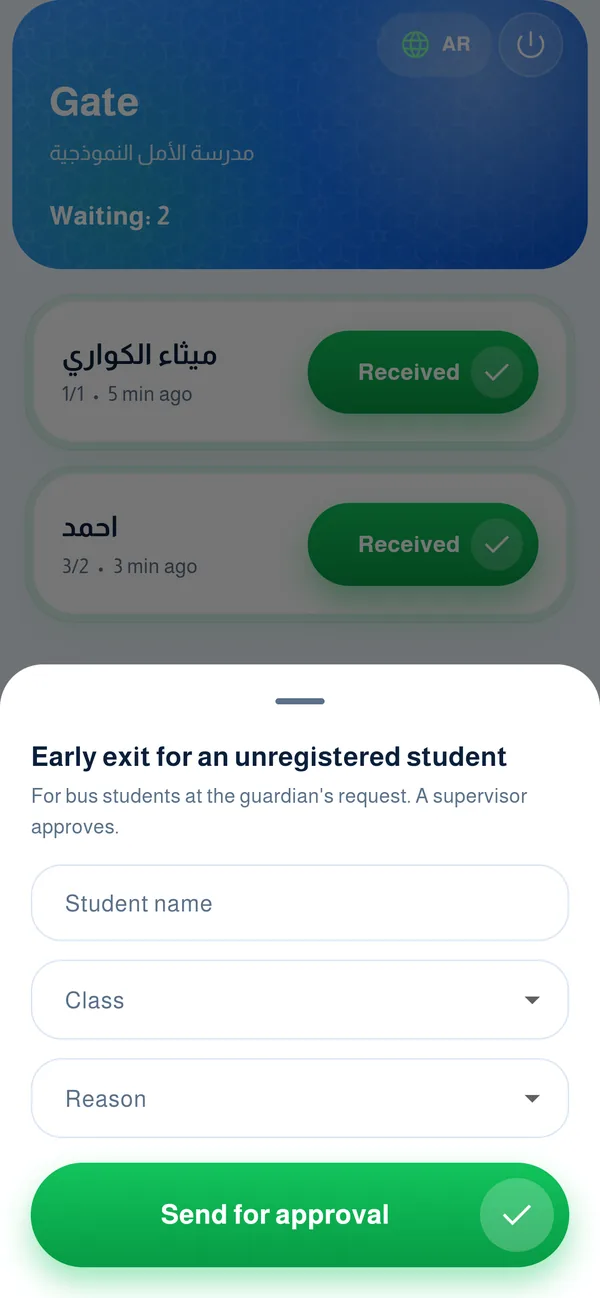
Early exit for a bus student
Tap “Early exit (bus)” and enter the student’s name, class and reason, then “Send for approval”. A supervisor approves it.
-
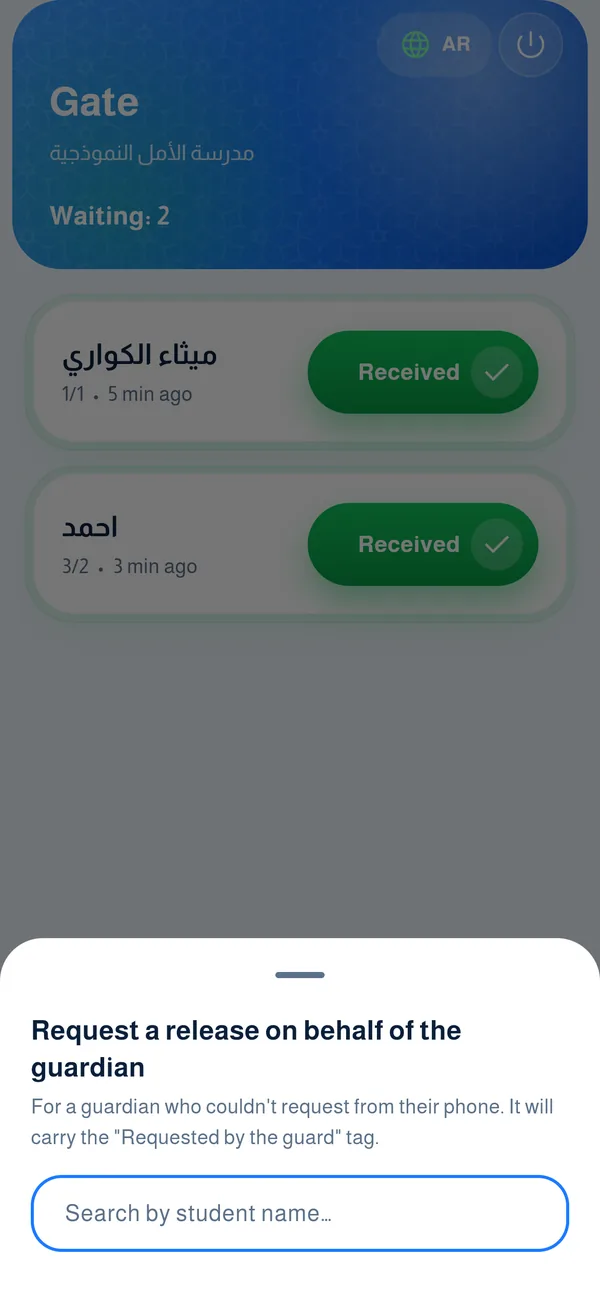
Request on behalf of a guardian
If a parent cannot request from their phone, tap “Request on behalf of a guardian” and search for the student. Supervisors see it with a “Requested by the gate” tag.
Common questions
“Received” does not show?
The school admin turns this step on in settings. Ask them if you need it.
I tapped “Received” by mistake?
The parent gets the confirmation right away, so tell a supervisor to correct it.
How do I raise an early exit for an unregistered bus student?
Tap “Early exit (bus)”, write the student’s name, class and the reason (required), then “Send for approval”. A supervisor approves it.
Do I get a notification when a student is released?
Yes if the pickup-confirmation step is on: you get a grouped notification that students are waiting to be received. You do not get parents’ request notifications.