
User guide
School admin guide
Add students and staff, issue codes, and follow the numbers.
-
Sign in with phone and password
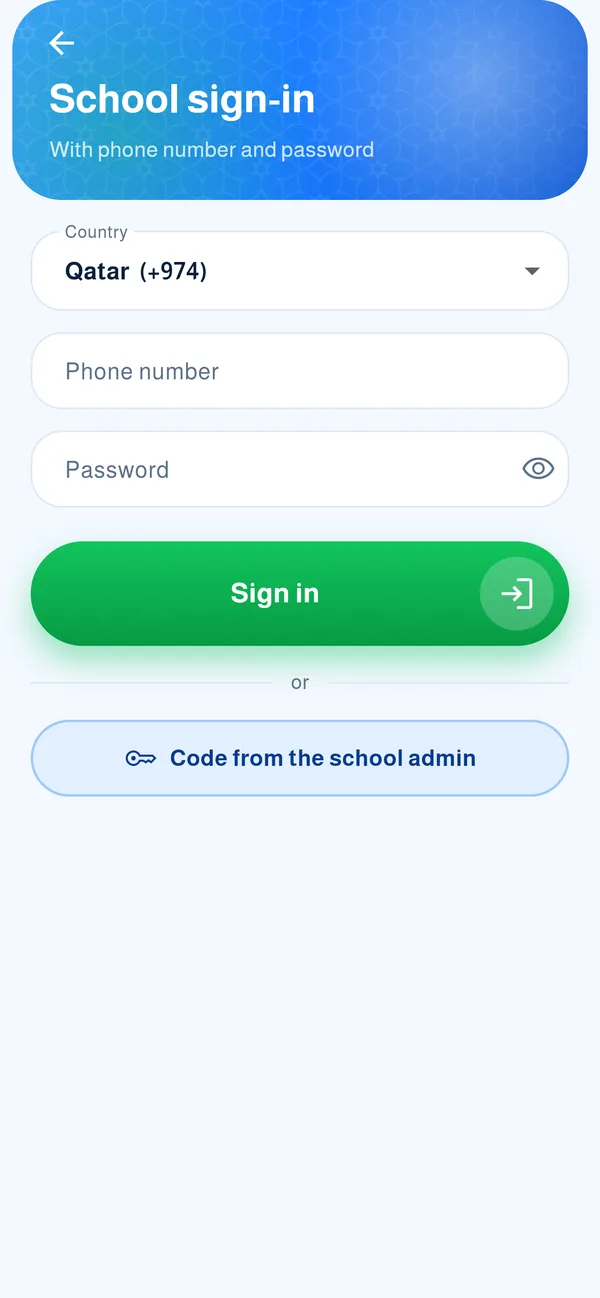
From “School” enter your phone number and password. On first sign-in the app asks you for a new password of your own: at least 8 characters with a letter and a number.
-
The admin menu
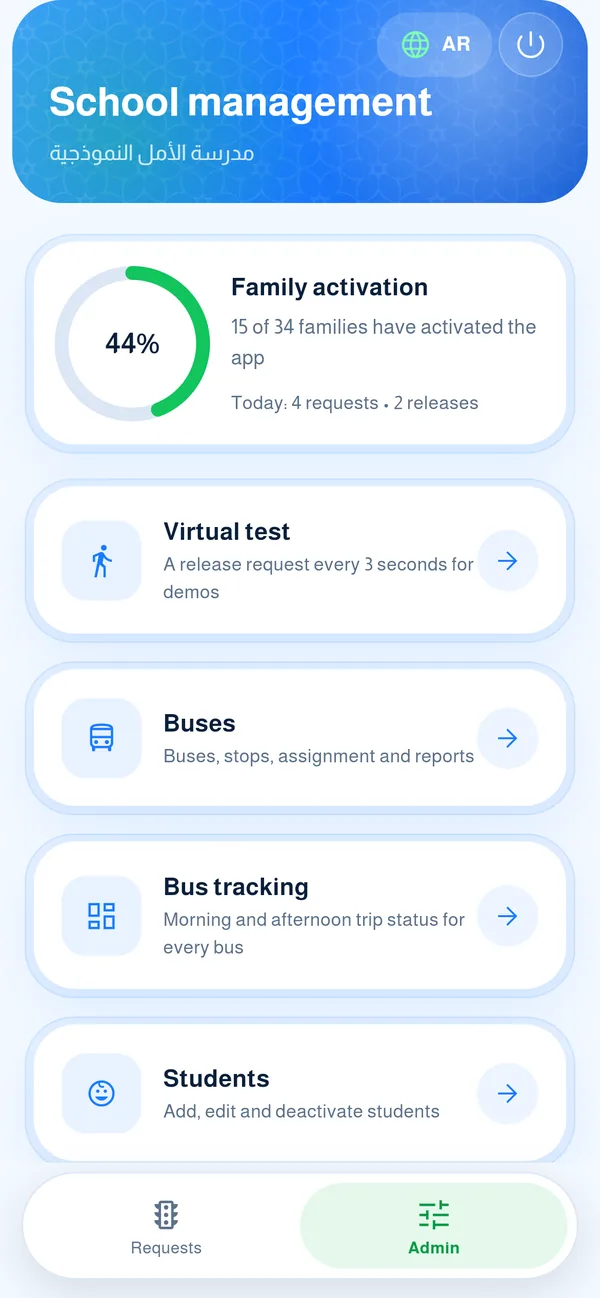
All school tools are here: students, import, activation cards, staff, and the display screen. At the top you see the share of families who activated the app and today’s numbers.
-
Students
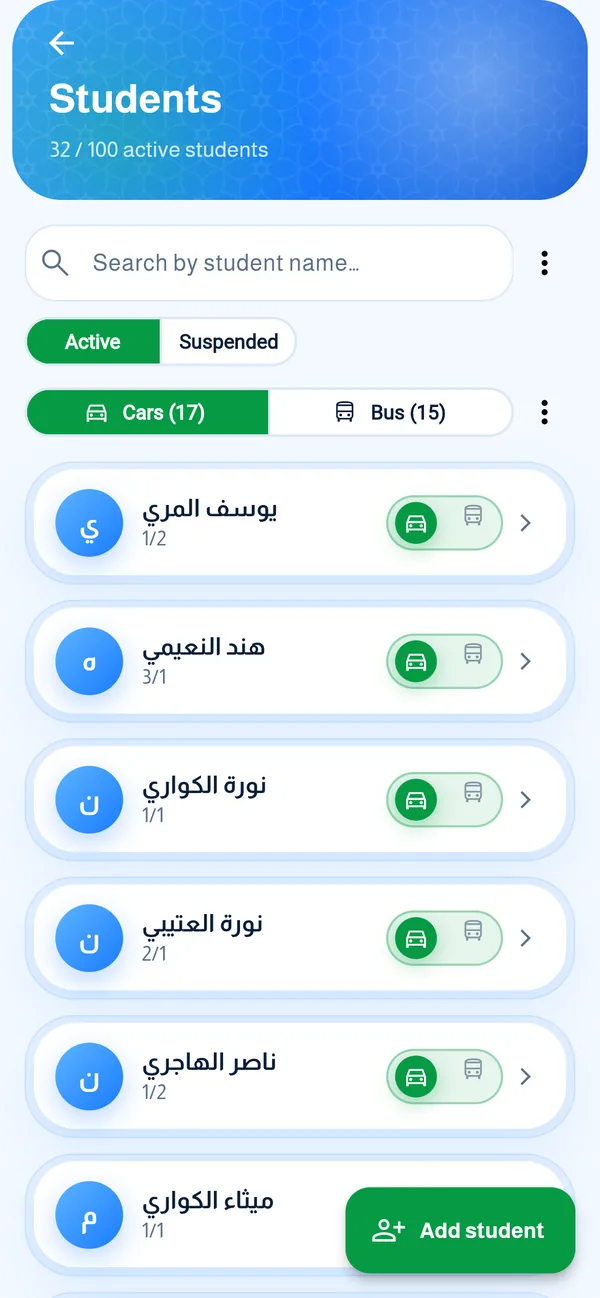
Add, edit or suspend a student (suspending does not delete the record). Search by name and switch between “Active” and “Suspended”. You can switch a student between car and bus.
-
Import students from Excel
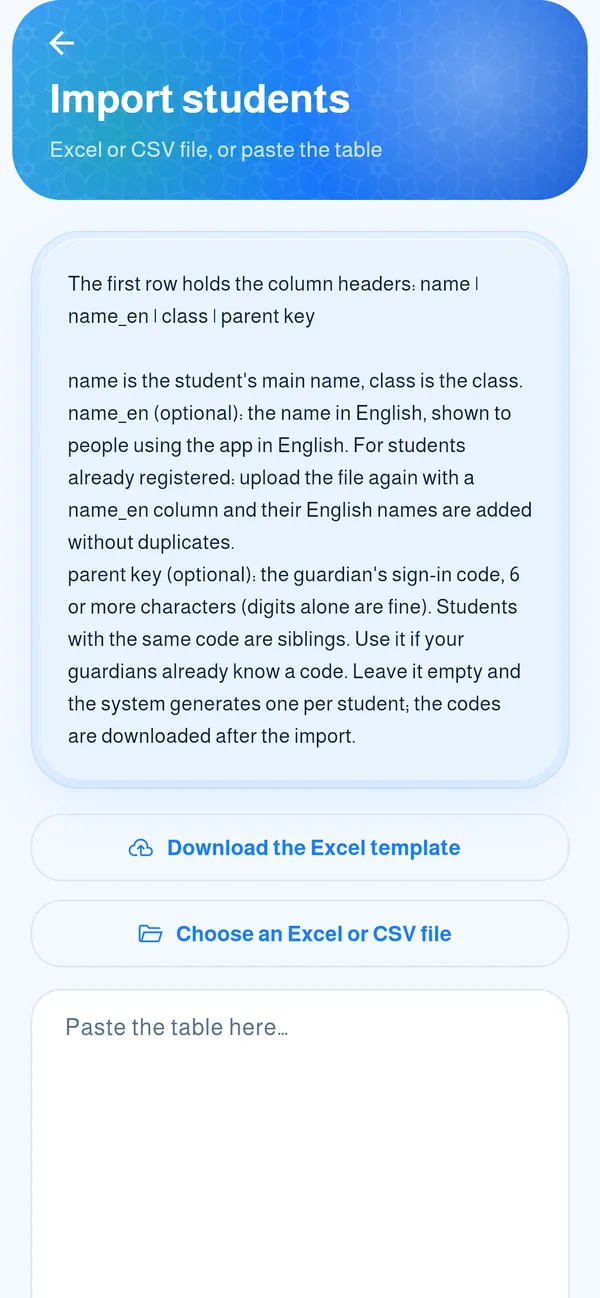
Download the template, add students with name and class columns (and “name_en” for the English name, optional), then upload or paste the file. The app reviews it before saving.
-
Activation cards
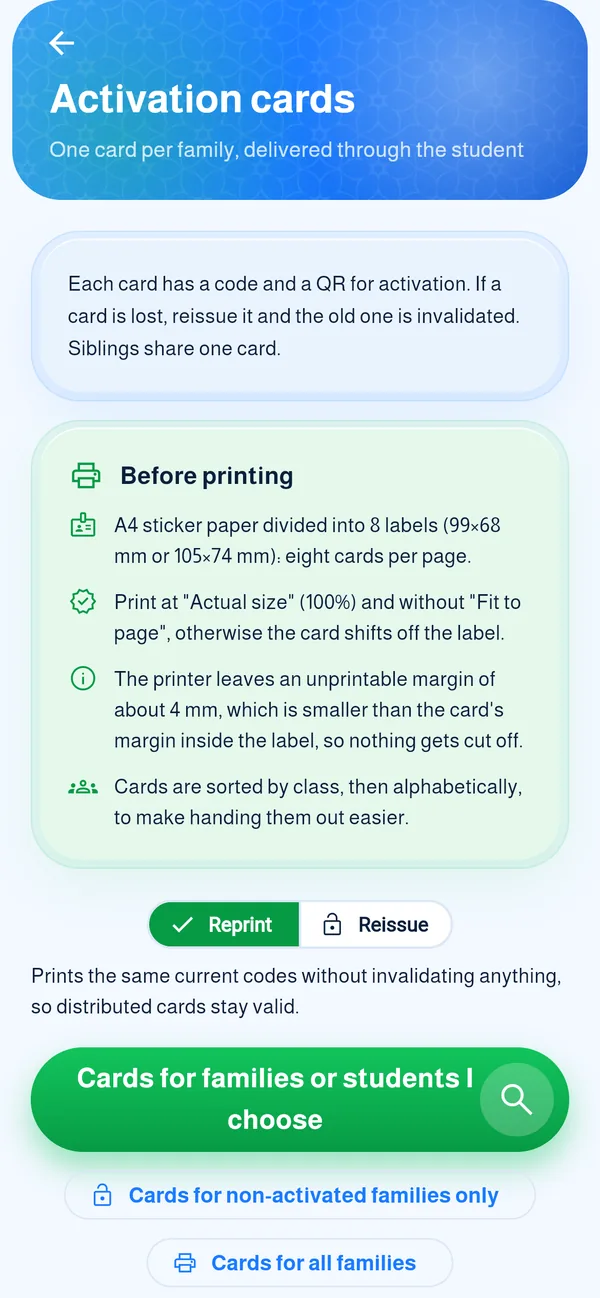
Each family gets a card with a code and QR, delivered through the student. “Reprint” prints the current codes without invalidating them; “Reissue” cancels the old ones. Print at actual size 100%.
-
Supervisors and organisers
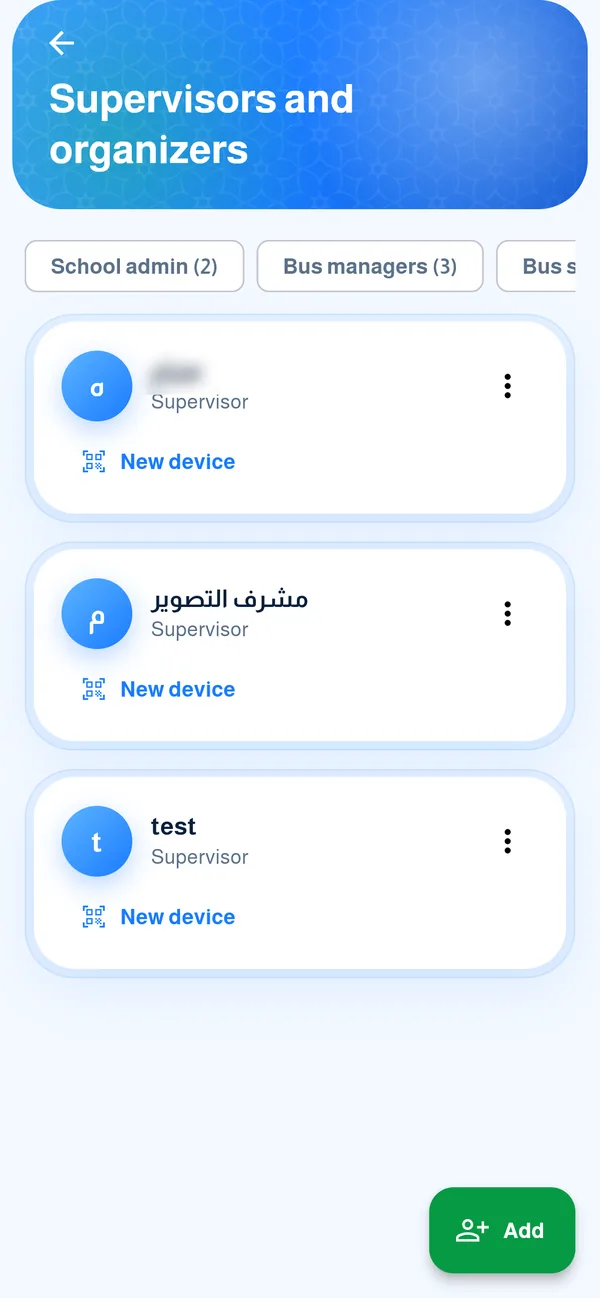
Add a supervisor or gate officer with a code or QR and confirm their name. “New device” gives them a code that replaces their old device. You can suspend or delete them from the list.
-
Display screen (TV)
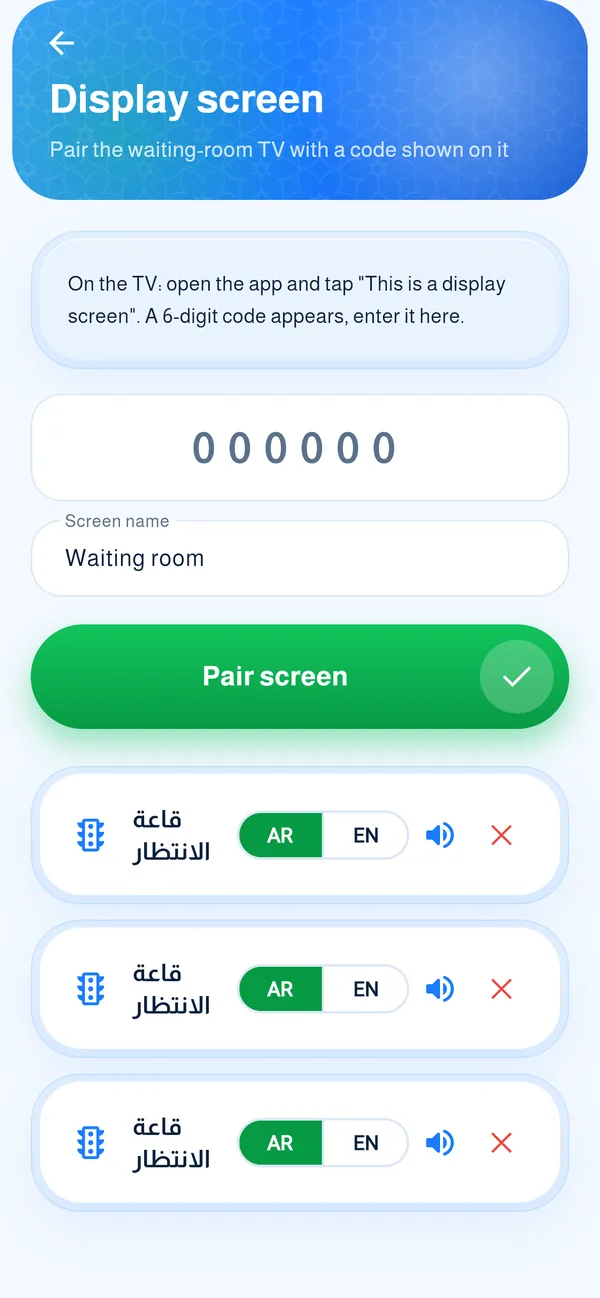
On the TV open the app and choose “This is a display screen” to show a 6-digit code. Enter it here, name the screen, and tap “Pair screen”. You can change its language and mute it.
-
Reports
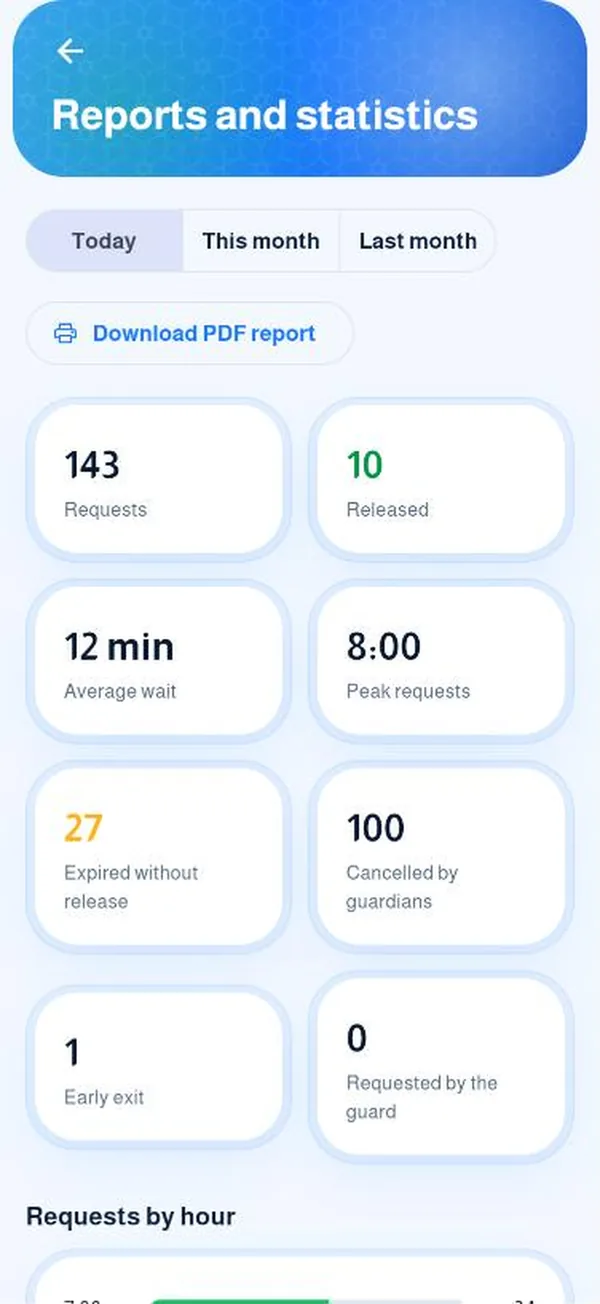
Pick a day or a month to see request and release counts, and download a PDF report for the school.
Common questions
How do I sign in the first time?
From “School” enter your phone number and the password you were given. On first sign-in you choose your own password: at least 8 characters with a letter and a number.
How do I import students from Excel?
Download the template from the app. Columns: name, class and “parent key” (the guardian code, optional). If you leave parent key empty the system generates one. Upload or paste the file; the app reviews it before saving.
How do I link siblings?
Give them the same parent key in the file. They share one code and their guardian sees all the children together.
A parent key was rejected during import?
A code that another family is currently using, in any school, is rejected. Use a different one or leave it empty so the system generates it.
How do I add English names for my students?
Add a name_en column to the import file. If the student already exists with the same name and class, their English name is updated instead of skipped. The English name is optional.
A message says the student limit is full?
Each school has a maximum set by the system admin, counted over active students only. Suspending a student frees a seat. An import that exceeds the limit is refused as a whole, and the message shows how many seats are free. To raise it, contact us.
What is the difference between suspending and deleting a student?
Suspending hides them from the queue without deleting their record and frees a seat; you can reactivate them. There is no delete on the students screen.
How do I print activation cards?
From “Activation cards” choose families, not-yet-activated, or all. “Reprint” prints the current codes without invalidating them; “Reissue” cancels the old ones. Print at actual size 100% (8 cards per A4 page, sorted by class).
A family lost their card?
From “Activation cards” choose the family and reissue; the old code is cancelled; then print the card. From “Edit student” you can also copy the code for a single family.
A parent is blocked from activating?
After five wrong attempts they are blocked for a while. From admin choose “Unblock a guardian” and enter the “block number” shown to them in the message.
How do I add a supervisor or gate officer?
From “Supervisors and organisers” choose the role (supervisor, gate or bus supervisor); a code and QR appear to give them. After they enter it, type their name and confirm. “New device” gives them a code that replaces their old device.
How do I suspend or delete a staff member?
From the ⋮ menu next to their name: “Suspend” blocks their access for now, and “Delete permanently” needs two confirmations and typing “delete”. You cannot delete yourself or the last admin.
How do I set release hours?
In settings set a schedule for each weekday. For exam days or exceptions use “Exams and exceptions”.
Can parents request from anywhere?
Yes, turn it on in settings and set the range (100 m to 10 km). When on, a request is not refused for distance, but location is still required.
How do I set the school’s WhatsApp number?
In settings type the number in international format without +. A WhatsApp button appears for parents under your school’s children, and “Forgot my code?” uses it.
How do I see and download reports?
From “Reports” pick a day or a month to see the counts, and tap “Download PDF report” for a report with names. Requests are deleted when the year ends and the statistics remain.
How do I switch a student between car and bus?
From “Edit student” choose “Exit method” (car or bus); it saves right away. There is also “Switch all” for a group.
How do I pair a TV screen?
On the TV open the app and choose “This is a display screen” to show a 6-digit code. In “Display screen” in admin enter it, name the screen and tap “Pair screen”.
How do I see the share of families who activated?
It shows at the top of the admin menu along with today’s numbers.