
User guide
Add another phone guide
Let a mother or driver request pickup too, in a minute and without waiting for the school.
-
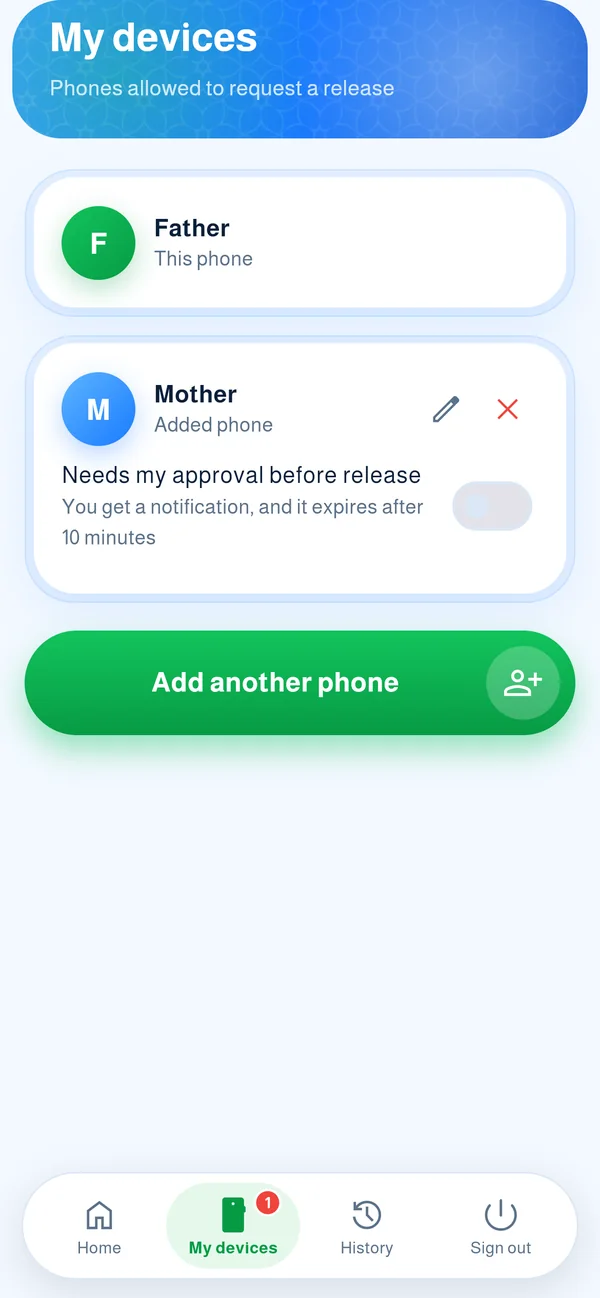
Open “My devices”
On the first phone, tap “My devices” in the bottom bar. You see the phones allowed to request a release, and the “Add another phone” button.
- 1Tap “Add another phone”
 1
-
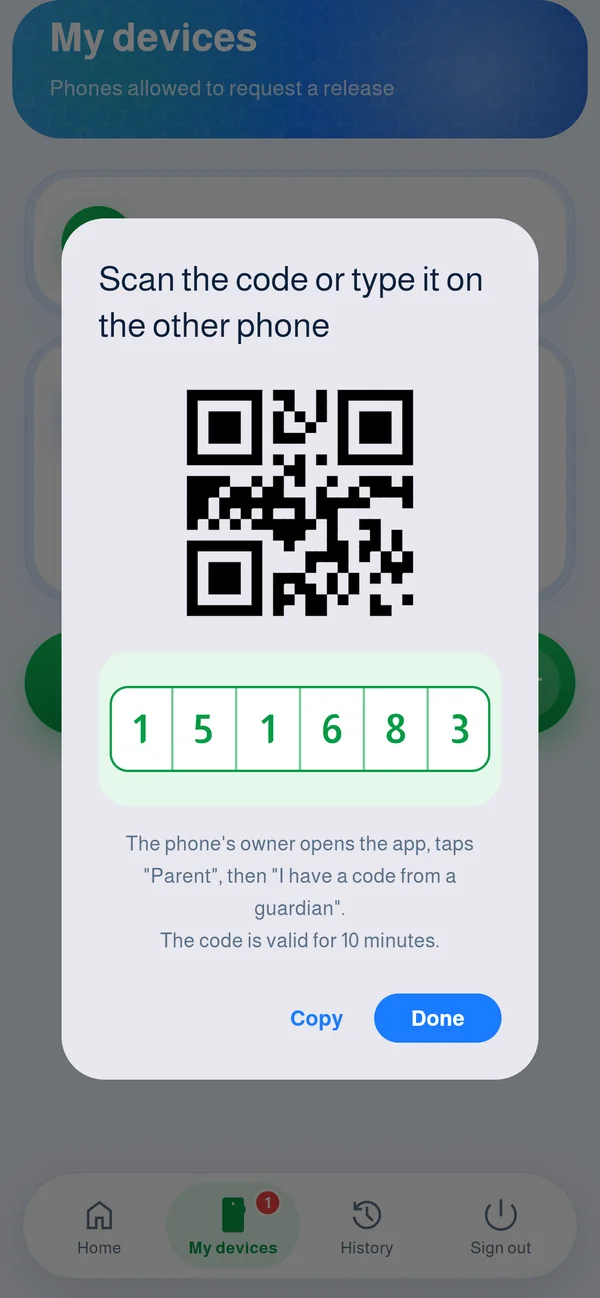
A code and QR appear
A 6-digit code and a QR code appear, valid for 10 minutes. Give the code to the other phone’s owner, or let them scan the QR.
-
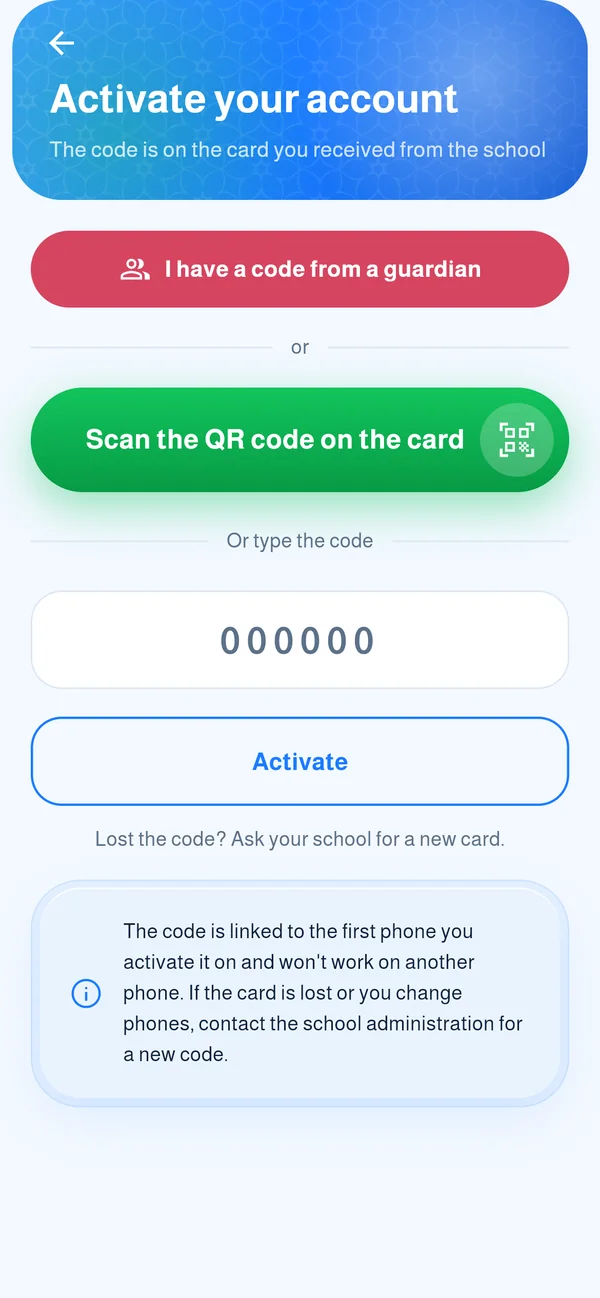
On the new phone
The owner opens the app, picks “Parent”, then taps the red “I have a code from a guardian” button.
- 1Tap “I have a code from a guardian”
 1
-
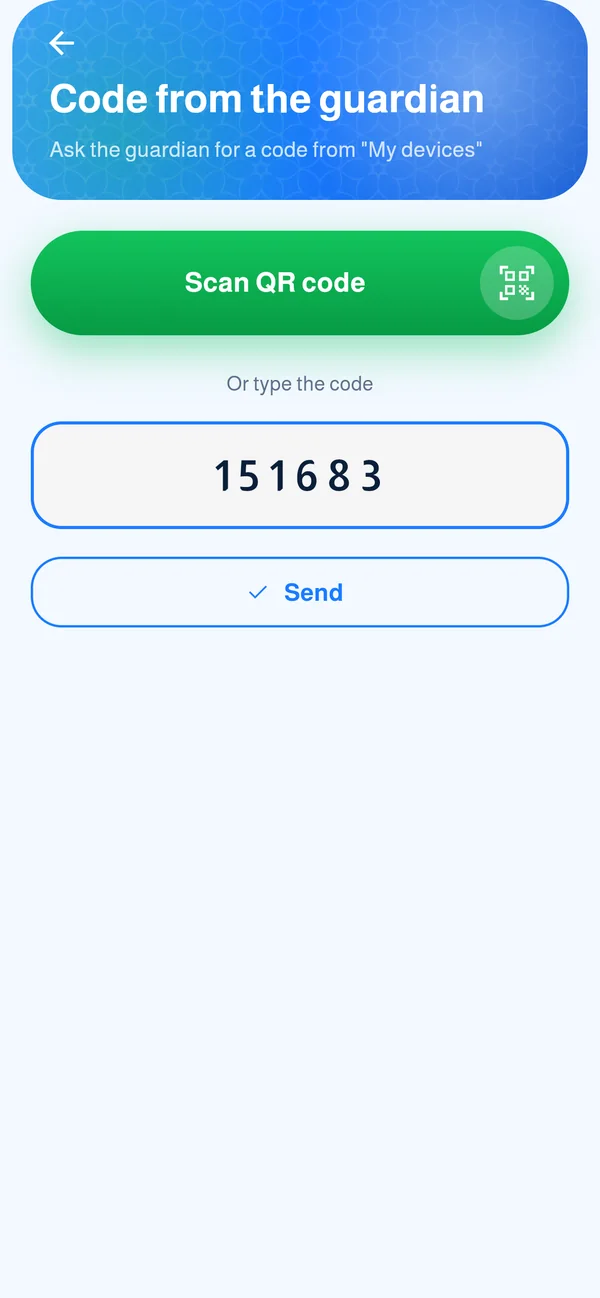
Type the code
They type the six digits (or scan the QR) and tap “Send”.
-
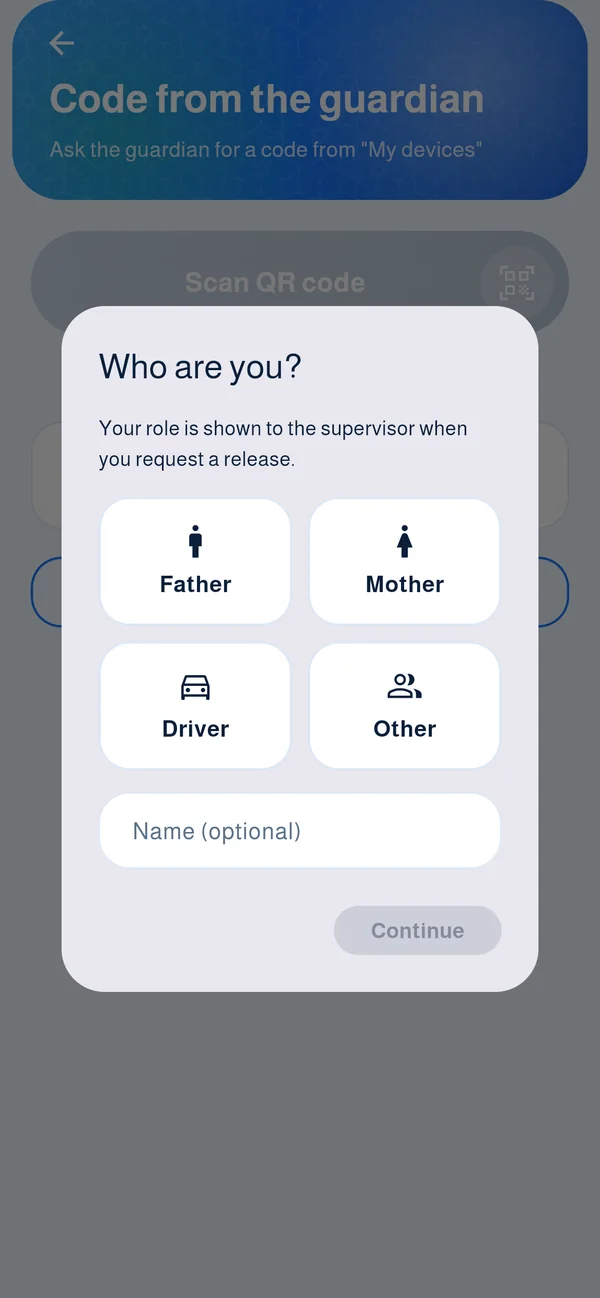
Pick the role
They choose “Mother”, “Driver” or another role, and optionally add a name, so the supervisor knows who is asking.
-
Added
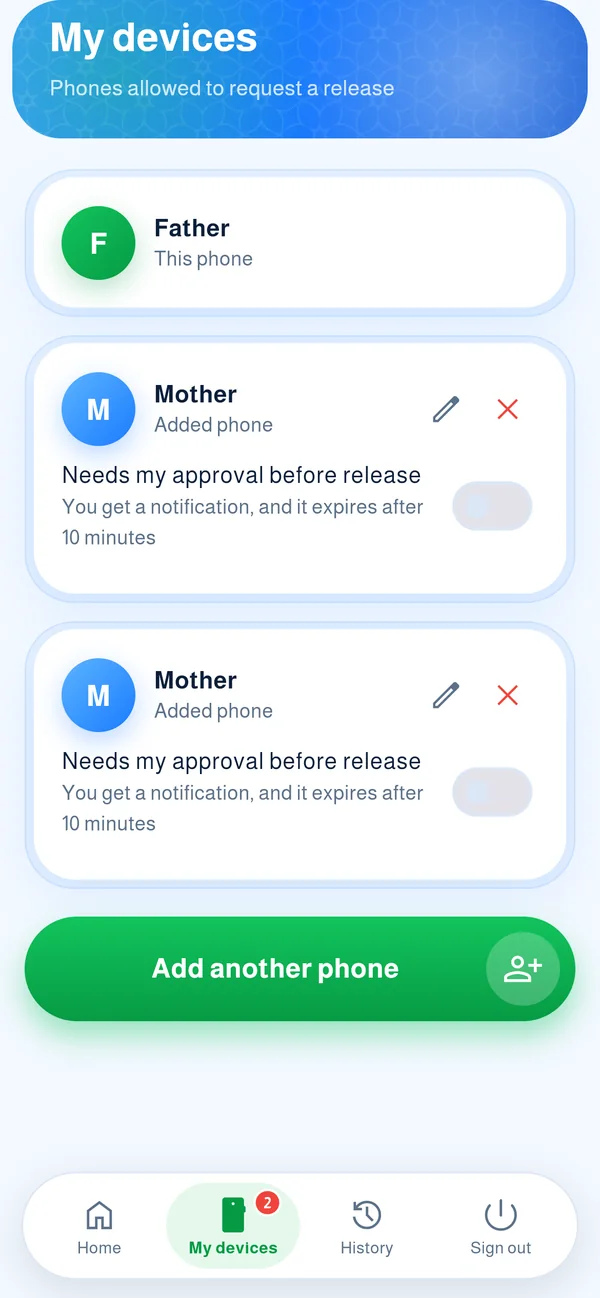
The new phone shows up in “My devices” on your phone right away, and you get a message. You can rename it or remove it at any time.
- 1Edit the name
- 2Remove the phone
 12
Common questions
How do I add the father’s or a driver’s phone?
In “My devices” tap “Add another phone” to get a 6-digit code valid for 10 minutes. The other phone enters it on the activation screen (“I have a code from the guardian”). It is added right away and you get a notification.
The code expired before I used it?
It lasts 10 minutes. Tap “Add another phone” again to get a new one.
How many phones can I add?
The school sets the number per family, usually three including yours. If you reach the limit, remove a phone you no longer need.
Can I control what the added phone does?
Turn on “Needs my approval before release” for that phone. You get a notification for each request from it and approve or refuse. It expires if you do not answer within 10 minutes.
I lost the added phone?
Open “My devices” and tap ✕ next to it. It stops working immediately.